Moving to a new computer is exciting. However, many users wonder whether they can transfer their Windows 11 license instead of buying a new one. Therefore, understanding how Windows licensing works can help you save time, avoid activation errors, and keep your PC legally activated. Moreover, Microsoft allows some Windows 11 licenses to be transferred, while others stay linked to the original device. Consequently, knowing your license type before upgrading is important. Whether you are replacing an old laptop, building a custom desktop, or upgrading your business computer, this guide explains everything you need to know about transferring a Windows 11 license safely in 2026.
What Is a Windows 11 License?
A Windows 11 license is Microsoft’s official authorization that allows you to install, activate, and use Windows 11 legally. Furthermore, a genuine license unlocks all Windows features and allows your computer to receive official Microsoft security updates.
Additionally, a genuine Windows 11 license provides:
- Official Windows activation
- Regular security updates
- Access to Microsoft features
- Better system stability
- Improved protection against cyber threats
- Legal software compliance
Therefore, using a genuine Windows license is always recommended for personal and business users.
Can You Transfer a Windows 11 License?
Yes, you can transfer some Windows 11 licenses. However, the answer depends on the type of license you own.
Generally, Microsoft offers different license types. Therefore, understanding your license type is the first step before moving Windows to another computer.
The most common license types are:
- Retail License
- OEM License
- Volume License
Moreover, each license follows different transfer rules.
Which Windows 11 Licenses Can Be Transferred?
Retail License
A Retail license can usually be transferred to another computer.
Therefore, if you purchased Windows 11 separately from Microsoft or an authorized seller, you can normally move the license after removing it from the old device.
Furthermore, this is the most flexible Windows license type.
OEM License
An OEM license is normally installed by the computer manufacturer.
However, this license is generally linked to the original motherboard.
Therefore, OEM licenses usually cannot be transferred to another computer.
Volume License
Volume licenses are designed for organizations.
Moreover, businesses use these licenses to manage multiple computers through centralized licensing.
Therefore, individual users normally do not use Volume Licensing.
How to Check Your Windows 11 License Type
Before transferring Windows, you should identify your license type.
Fortunately, Windows provides an easy way to check.
Step 1
Open Command Prompt as Administrator.
Step 2
Type the following command:
slmgr /dli
Step 3
Press Enter.
Windows will display licensing information.
If it shows Retail, the license is usually transferable.
If it shows OEM, the license normally stays with the original device.
Therefore, checking the license type helps avoid activation problems later.
Things to Do Before Transferring Your License
Before moving your Windows 11 license, prepare your computer properly.
Back Up Important Data
First, save important files.
For example:
- Documents
- Photos
- Videos
- Business files
- Emails
Therefore, you can avoid losing valuable information.
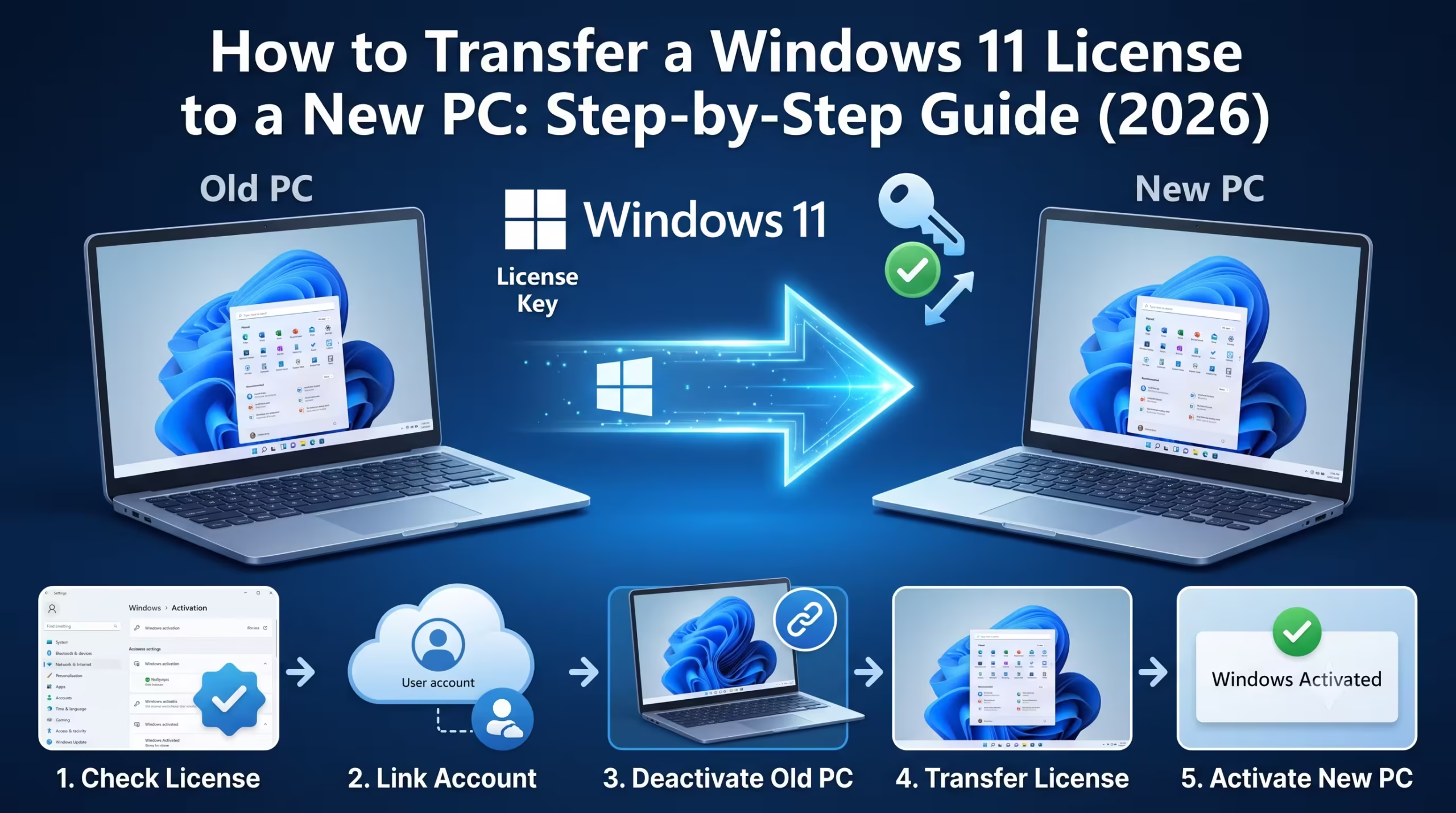
Link Windows to Your Microsoft Account
Next, connect your Windows activation to your Microsoft account.
This provides several benefits.
For example:
- Easier activation
- Better license management
- Faster recovery after hardware changes
Furthermore, Microsoft recommends linking your digital license before upgrading your PC.
Check Internet Connection
Additionally, ensure both computers have a stable internet connection.
Windows activation may require online verification.
Therefore, internet access makes the process smoother.
Step-by-Step Guide to Transfer Windows 11 License
Step 1: Remove the License from the Old PC
Before activating Windows on the new computer, remove the product key from the old system.
Open Command Prompt as Administrator.
Run:
slmgr /upk
This command removes the product key.
Next, run:
slmgr /cpky
This removes the stored key from the Windows registry.
Therefore, the license is no longer associated with the old computer.
Step 2: Install Windows 11 on the New Computer
Download the official Windows 11 installation media.
Next, install Windows normally.
During installation, you can enter your product key or skip it temporarily.
After installation, continue with activation.
Step 3: Activate Windows
Open:
Settings → System → Activation
Next, enter your Windows 11 product key.
If your license is connected to your Microsoft account, Windows may activate automatically.
Otherwise, follow the activation instructions shown on the screen.
Step 4: Troubleshoot Activation
Sometimes Windows may not activate immediately.
However, Microsoft provides an Activation Troubleshooter.
Open:
Settings → System → Activation
Next, select Troubleshoot.
Furthermore, sign in with the Microsoft account linked to your digital license.
Windows will help activate your new computer.
Common Activation Errors
Sometimes users experience activation problems.
Fortunately, most issues have simple solutions.
Product Key Already in Use
This usually happens if Windows is still activated on the old computer.
Therefore, remove the license from the previous device first.
Hardware Change Detected
Changing the motherboard may affect activation.
However, users with linked Microsoft accounts can often reactivate Windows.
Invalid Product Key
Always verify that you entered the correct key.
Moreover, purchase licenses only from trusted Microsoft partners.
Can You Transfer Windows After Replacing Hardware?
Replacing RAM or storage normally does not affect activation.
However, replacing the motherboard may be considered a new device.
Therefore, OEM licenses generally cannot be transferred after a motherboard replacement.
Retail licenses usually provide more flexibility.
Benefits of Using a Genuine Windows 11 License
Choosing a genuine Windows license provides several long-term advantages.
Moreover, it helps protect your computer from security risks.
Benefits include:
- Official Microsoft updates
- Reliable activation
- Better performance
- Improved security
- Access to Windows features
- Software compliance
Therefore, genuine licensing offers better value over time.
Common Mistakes to Avoid
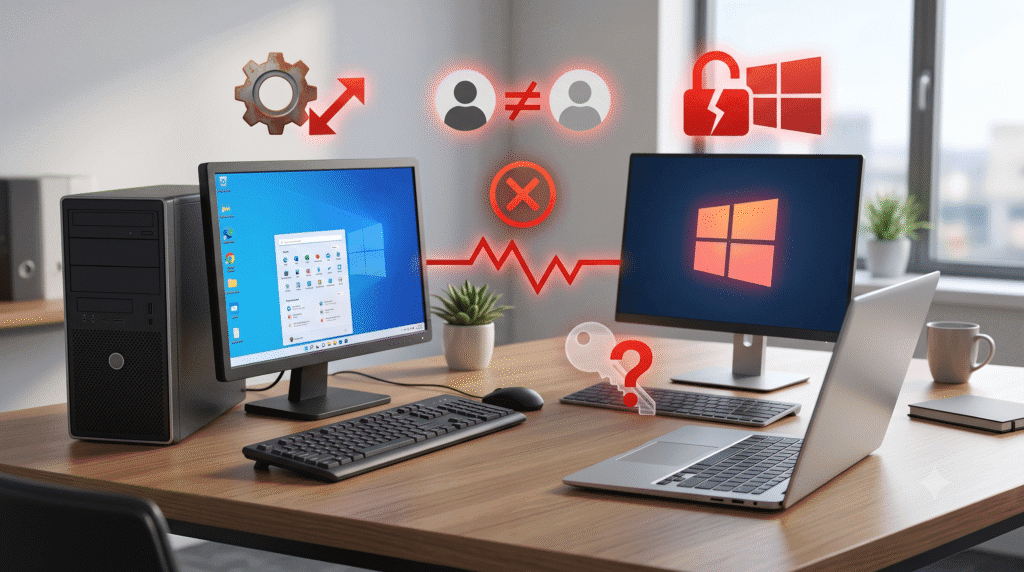
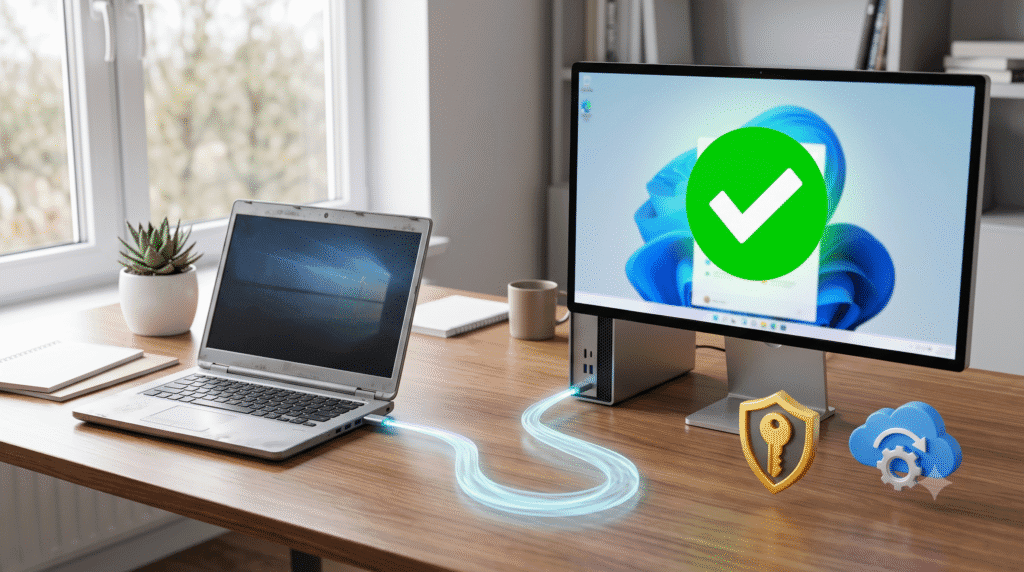
Many users make mistakes during license transfers.
However, avoiding these mistakes makes the process easier.
Do not:
- Buy cheap keys from unknown sellers.
- Use activation tools.
- Activate Windows on multiple computers with one Retail license at the same time.
- Skip linking your Microsoft account.
- Ignore activation messages.
Instead, always follow Microsoft’s licensing rules.
AI Module: How AI Is Improving Windows 11
Artificial Intelligence is becoming an important part of Windows 11.
Moreover, Microsoft continues adding AI-powered productivity features.
AI can help users:
- Search files faster
- Summarize documents
- Improve productivity
- Assist with writing
- Organize workflows
Furthermore, AI-based security tools help identify suspicious activities more quickly.
Therefore, keeping Windows 11 genuine ensures access to future AI improvements.
Best Practices for Windows License Management
Managing your Windows license properly prevents future problems.
Therefore, follow these recommendations:
- Keep your purchase invoice.
- Save your product key securely.
- Link your Microsoft account.
- Purchase genuine licenses.
- Activate only one PC with one Retail license.
- Keep Windows updated.
Moreover, businesses should maintain proper license records for compliance.
Frequently Asked Questions
Can I transfer my Windows 11 license to another PC?
Yes. Retail licenses are generally transferable. However, OEM licenses are usually tied to the original device.
How do I know if my Windows 11 license is Retail or OEM?
Run the slmgr /dli command in Command Prompt to view the license type.
Will replacing my SSD affect Windows activation?
No. Replacing storage usually does not affect activation. However, replacing the motherboard may.
Do I need a Microsoft account?
Although it is not required in every situation, linking your Microsoft account makes transferring and reactivating Windows much easier.
Can I use the same product key on two computers?
No. A single Retail license should be active on only one computer at a time.
Final Thoughts
Transferring a Windows 11 license to a new PC is simple when you understand Microsoft’s licensing rules. Therefore, always check your license type before replacing your computer. Moreover, link your Microsoft account, back up important data, and follow the proper activation steps. As a result, you can move to a new Windows 11 computer without unnecessary activation problems. Finally, using a genuine Windows 11 license provides better security, reliable updates, long-term performance, and access to future Microsoft features, making it the best choice for every user.